Modeling
The Modeling view allows you to model new and existing components.
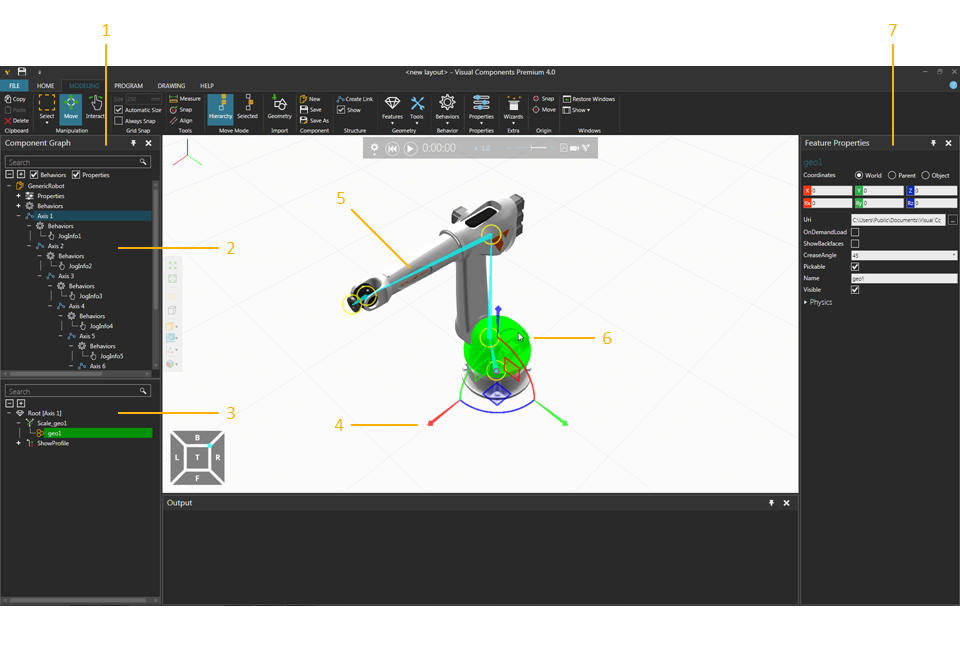
| 1. | Component Graph Panel |
| 2. | Component Node Tree |
| 3. | Node Feature Tree |
| 4. | Manipulator |
| 5. | Visual Node Structure |
| 6. | Selected Feature |
| 7. | Properties Panel |
Access
To access the Modeling view:
- Click the MODELING tab.
Panels
The Modeling view shows, by default, the following panels:
- Component Graph for viewing and editing the data structure of a selected component. The panel itself consists of two panes. The top pane (Component Node Tree) shows the node structure of a component as well as the component's properties and behaviors. The bottom pane (Node Feature Tree) shows the feature structure of a selected node in a component, which can include primitives, imported geometry from CAD files, physics elements, and operations that transform and manipulate other features.
- Properties for reading and writing properties of selected objects in a component. This includes nodes, behaviors and features. Component properties are objects with their own set of properties listed in a Property task pane.
Context
The context of the Modeling view is component modeling.
You can:
- Create, edit and link nodes to form a kinematic chain of joints.
- Create and connect behaviors to perform and simulate internal and external tasks and actions.
- Contain, create and manipulate CAD geometry and topology in features. This includes data analysis, clean up, regrouping and simplification of geometry in CAD files for use in small, medium and large layouts.
- Create and reference component properties to control and limit the value of other properties within a component.
- Use mathematical equations and expressions to define properties and make a component parametric.
- Create static and kinematic objects as well as entities for simulating physics. This includes restitution, rigidity and elasticity.
- Use Python 2.7 and API to implement scripts for defining component features, logic as well as the automation of tasks, actions and event handling.
Commands
By default, the following commands are shown in the Ribbon when you click the Modeling tab.
| Name | Description |
| Align | Aligns a selected object using two points. Additional options are displayed in a task pane.
Settings Snap Type |
| Always Snap | Turns on/off the automatic snapping of a selected object along an axis or plane at intervals when using the manipulator. |
| Automatic Size | Turns on/off the automatic calculation of intervals for snapping a selected object along an axis or plane when using the manipulator. |
| Behaviors | Displays a list of behaviors that can be created in a selected node. |
| Copy | Copies the current selection to the clipboard. |
| Create Link | Creates a new child node in a selected node. |
| Delete | Deletes the current selection. |
| Features | Displays a list of features that can be created in a selected node. |
| Geometry | Imports the geometry of a supported file. Additional options are displayed in a task pane, see Import Model Settings. |
| Hierarchy | Allows a selected object and its hierarchy to be moved together when using the manipulator. |
| Interact | Allows the pointer to jog joints and other interactive properties of objects in one or more degrees of freedom in the 3D world. |
| Measure | Measures the distance and/or angle between two points in 3D world. Additional options are displayed in a task pane.
Mode Settings Snap Type Tip: The results of a measurement are sent to Output panel. |
| (Manipulation) Move | Allows a selected object to be moved along an axis or plane, rotated around an axis, and snapped and aligned to a point in 3D world. |
| (Origin) Move | Allows the point of origin in active component to be moved in 3D world. Additional options are displayed in a task pane.
Apply |
| New | Creates a new component in the 3D world. |
| Paste | Adds the contents of clipboard to active area or field of workspace depending on data type. |
| Properties | Displays a list of properties that can be created in the root node of active component. |
| Restore Windows | Restores the workspace of current view to its default setting. |
| Save | Saves the active component to an existing file, otherwise a new file. |
| Save As | Saves the active component to a new file. |
| Select | Allows for direct and indirect selection of features in the 3D world using listed commands.
Rectangular selection Free-form selection Select all Invert selection |
| Selected | Allows a selected object not its hierarchy to be moved when using the manipulator. |
| (Structure) Show | Turns on/off the visual node structure of an active component in 3D world, including joint offsets and degrees of freedom. |
| (Windows) Show | Displays a list of panels that can be shown/hidden from the current view of workspace. |
| Size | Defines the interval for snapping a selected object along an axis or plane when using the manipulator. |
| (Origin) Snap | Allows the point of origin in active component to be snapped to a location in 3D world by using one to three points. Additional options are displayed in a task pane.
Mode Settings Snap Type Apply |
| (Tools) Snap | Allows a selected object to be snapped to a location in 3D world by using one to three points. Additional options are displayed in a task pane.
Mode Settings Snap Type |
| Tools | Displays a list of tools for editing nodes, features and geometry.
Split Invert Merge Merge faces Collapse Slice Select Identical Remove Holes Component Link Decimate Cylindrify Blockify Assign Add Decal Mapping |
| Wizards | Displays a list of wizards for executing automatic operations.
Action Script Convex Hull Conveyor Count Triangles End Effector IO-Control Machine Wizard |