Denso Robot
About the plugin
The Denso Robot plugin allows you to connect to a Denso robot controller during simulation and exchange data. For example, a program running in a virtual or physical Denso controller can drive the joints of a Denso robot in a simulation, read data from sensors, and set outputs for picking and placing products.
The plugin is associated with the Connectivity feature of Visual Components Premium and can connect to one or more Denso robot controllers. The simplified workflow is the following:
- Add server
- Connect to the server
- Map variables
- Run the simulation
Terminology
- WINCAPS 3 – Offline programming software and VRC for Denso robots.
Note: Be aware that you can install WINCAPS 3 together with ORiN SDK and VRC version 8 and 9. - PacScript – Programming language to control Denso robots.
- RC8/9 – Indicates the version of Denso robot controller, version 8 or 9. For example, Denso Cobotta Pro robots work with RC9 but not RC8.
- ORiN – Framework and middleware used for communicating with Denso robots.
- The plugin uses ORiN version 2.
- Refer to ORiN2 and Denso resources to learn more about the b-CAP communication protocol and Controller Access Object (CAO) architecture.
- In summary, Visual Components is a PC application that can communicate with Denso RC8 via b-CAP listener and CAO provider, whereas RC9 only uses CAO provider.
- ORiN2 SDK – Middleware application for developing application programs and providers based on ORiN2 specifications.
- WPJ/RCPJ – Project file types for a Denso robot controller. RC8 uses WPJ, and RC9 uses RCPJ.
- VRC – Virtual Robot Controller standalone app for Denso robots.
- EMU (Enhanced MUlti-robot simulator) – Like WINCAPS, it is a multi-robot simulator for Denso robots.
- DLL (Dynamic-Link Library).
- I/O (Input/Output).
Read and Write Support
Read and Write table
| Type | Read | Write | Notes |
| Robot controller I/O variables |
Yes |
Yes | Signals, some I/O are system variables and otherwise managed by the controller, therefore read-only in practice. |
| Current joint values from any robot of the connected controller |
Yes |
No | |
| Robot controller I, F, D, V, T, and S global variables |
Yes |
Yes |
Requirements
The connection requires Visual Components Premium and ORiN2 SDK to be installed on the same PC. The Denso Robot plugin supports versions 8 and 9 of the Denso robot controller.
ORiN acts as middleware for the connection and requires a separate license that can be purchased from Denso. When adding a server for the Denso Robot plugin, there is an indicator if the libraries (DLL) from the ORiN2 SDK are found on the PC.
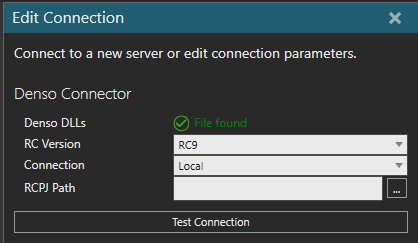
The default path is C:\ORiN2\DotNet\RCW and this path can be changed by editing the VisualComponents.Connectivity.Denso.dll.config file found in your Visual Components program files.
Setup
- Check that your host PC meets the requirements.
- Access the Denso robot controller.
- The plugin connects to the robot controller, so the virtual or physical robot controller should be accessible via a direct network connection (IP address).
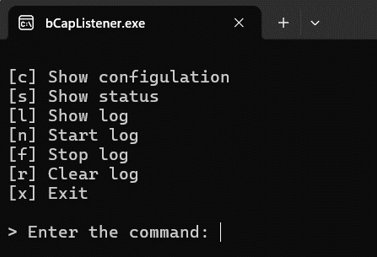
- If you are using Denso RC8, start the b-CAP listener on your PC. Otherwise, go to step 4. The default path to the listener is C:\ORiN2\CAO\ProviderLib\b-CAP\bCAPListener\Bin\bCapListener.exe.
- In Visual Components, add a new server with the plugin and connect to the controller.
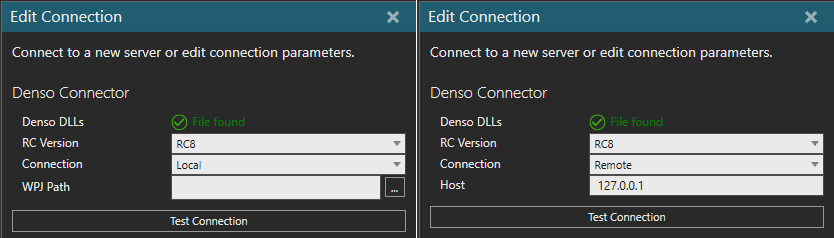
- If you are using Denso RC8, you can select a connection type: Local or Remote.
- For Connection: Local you must provide the WPJ Path (path to the Denso robot project file). The project file is the same as you would open in the WINCAPS or VRC application and specifies the robot type, I/O and variable configuration.
- For Connection: Remote you must provide the IP address of the real controller.
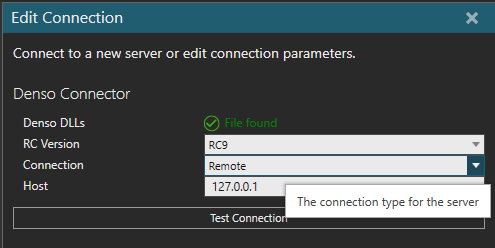
- If you are using Denso RC9, choose whether it is a Local or Remote connection.
- Local means you are connecting to the VRC on a localhost network, therefore the Denso robot project file (RCPJ file) is required.
- Remote means you are connecting to a real controller, so you must provide the IP address.
- If you encounter any issues when connecting to a controller, review steps 3 and 4 above.
- An RC8 connection requires a b-CAP listener to be running for Visual Components to connect to the controller.
- A b-CAP listener is not required for an RC9 connection.
- A local RC9 connection requires an RCPJ project file and is meant for VRC use cases, for example a project running WINCAPS or VRC.
- If you receive any exceptions when attempting to connect, it most likely indicates that one or more licenses are missing or expired. Refer to the Requirements section above.
- If you are using Denso RC8, you can select a connection type: Local or Remote.
- Map the variables.
- For example, map the VALUE property of each degree of freedom (DOF)/Joint of the robot component to a joint of the corresponding mechanical unit in the controller. This way, the controller drives the robot in the 3D world.
- For simulating actions such as grasp/release, map the outputs of the robot component for those actions to the I/O of the controller you will use for those actions.
- Run the simulation.
- Run the simulation to start the exchange of data.
Note: In the Connected Variables panel, the Prepared value column can be used to set values for testing.
- Run the simulation to start the exchange of data.
Capabilities
You can verify the capabilities of the Denso Robot plugin and subsequent server connections in the Properties panel.
Plugin
- In the Connectivity Configuration panel, select Denso Robot.
- In the Properties panel, expand Connection Plugin Capabilities.
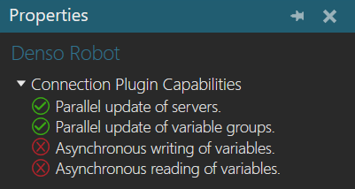
Server
- In the Connectivity Configuration panel, expand Denso Robot, and then select an active server connection.
- In the Properties panel, expand Server Capabilities.
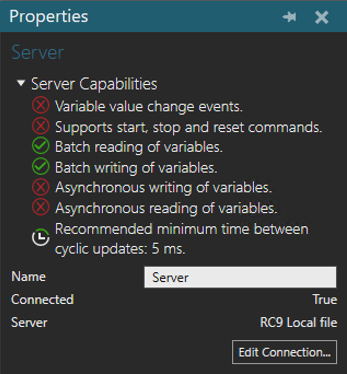
Connection Settings
A Denso Robot plugin connection varies based on the controller version (RC8 or RC9) and whether the connection is local or remote. A local connection, for example to WINCAPS, requires a project file (WPJ for RC8 or RCPJ for RC9) and it should be the same file loaded on the controller.
Error handling
- Exception codes can be decrypted using the ORiN2 ErrorSearch tool found in: C:\ORiN2\Tools\ErrorSearch\Bin\ErrorSearch.exe
- If the requirements are not met (e.g. ORiN2 SDK is not installed), attempting to add a server will fail.
- If the connection to the controller is lost, the exchange of data will stop. In such cases the plugin expects an event to be received from the controller. If the event is not received, you might need to manually disconnect Visual Components from the controller and then attempt to reconnect to verify that the connection is lost.
- Some inputs and outputs I/O might be reserved for use in your Denso project, for example motor power on and off and emergency stop. Be aware of how signals are used in your Denso project when attempting to write those signals during simulation. This is true for system input and output I/O in the Denso controller.
- If you are connected to WINCAPS and encounter an error when using its simulator, for example failure to read/write joint values, try disconnecting, then wait thirty seconds and then reconnect. If the issue persists, try closing and restarting WINCAPS.
- If you are using RC8, restart the b-CAP listener service first and then restart WINCAPS to see if this works around the issue.
- If you are using RC9, close WINCAPS, and then check in your PC Task Manager for CAO Module. If that process is running, close it, and then restart WINCAPS.
Limitations
- Event-based update mode is not supported therefore updates are done cyclically.
- Joint values cannot be written to the robot controller for safety reasons.
Compatibility
The Denso Robot plugin was developed using ORiN2 SDK and tested with WINCAPS 3 and the VRC applications provided by Denso. On-site tests with real Denso controllers were performed by Denso staff.
Be aware of issues experienced when testing RC8 projects in WINCAPS. For example, you may experience variables set by Visual Components in the controller not updating in WINCAPS or robot axis values no longer syncing when the simulator in WINCAPS is stopped or restarted. As a result, consider using the Denso VRC app for debugging RC8 projects instead.
Supported data types
The Denso Robot plugin supports access to digital signals, mechanical units joint data and global variables.
| Denso Robot Type | .NET Type |
| I/O | System.Boolean |
| Joint | System.Double |
| I-type variable | System.Int32 |
| F-type variable | System.Single |
| D-type variable | System.Double |
| V-type variable | System.Vector3 |
| J-type variable | System.Double |
| P-type variable | System.Matrix |
| T-type variable | System.Matrix |
| S-type variable | System.String |
The Denso project defines the number of global variables and I/O.
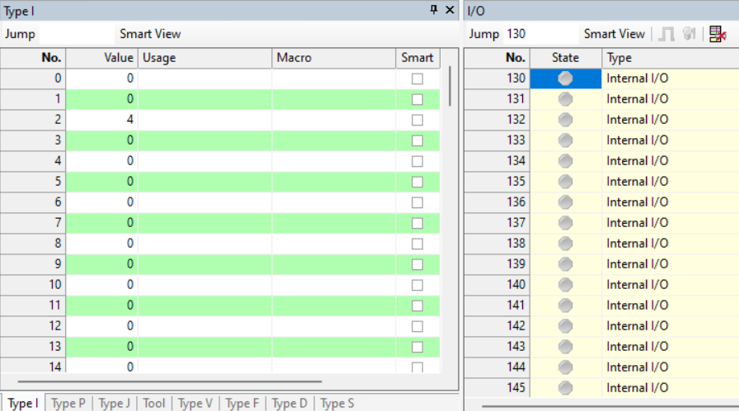
It is possible to read and write vectors, an array of joint values, Cartesian positions as well as tool locations with the plugin. In some cases, you need to pair a string with a semi-colon as the delimiter for read/write operations with variables on the connected Denso controller. This and other pairing type cases are outlined further in the following tables.
Pairings with Transmit Direction of Server to Simulation (Read from Controller)
| VC | Value | Denso | Value |
| String | "X;Y;Z" | V-Type | (X,Y,Z) |
| "X;Y;Z;T" | P-Type 4-Axis | (X,Y,Z,T,Figure)* | |
| "X;Y;Z;Rx;Ry;Rz" | P-Type 6-Axis | (X,Y,Z,Rx,Ry,Rz,Figure)* | |
| "X;Y;Z;Ox;Oy;Oz;Ax;Ay;Az" | T-Type | (X,Y,Z,Ox,Oy,Oz,Ax,Ay,Az,Figure)* | |
| "J1;J2;J3;J4;J5;J6;J7;J8" | J-Type | (J1,J2,J3,J4,J5,J6,J7,J8) | |
| Vector | (X,Y,Z) | Vector | (X,Y,Z) |
| (X,Y,Z) | Position 4-Axis | (X,Y,Z,T,Figure)* | |
| (X,Y,Z) | Position 6-Axis | (X,Y,Z,Rx,Ry,Rz,Figure)* | |
| (X,Y,Z) | Tool | (X,Y,Z,Ox,Oy,Oz,Ax,Ay,Az,Figure)* | |
| (X,Y,Z) | Joint | (J1,J2,J3,J4,J5,J6,J7,J8)** | |
| Matrix | (X,Y,Z) | Vector | (X,Y,Z) |
| (X,Y,Z,Rx,Ry,Rz) | Position 4-Axis | (X,Y,Z,T,Figure)* | |
| (X,Y,Z,Rx,Ry,Rz) | Position 6-Axis | (X,Y,Z,Rx,Ry,Rz,Figure)* | |
| (X,Y,Z,Ox,Oy,Oz,Ax,Ay,Az) | Tool | (X,Y,Z,Ox,Oy,Oz,Ax,Ay,Az,Figure)* | |
| (X,Y,Z,Rx,Ry,Rz) | Joint | (J1,J2,J3,J4,J5,J6,J7,J8)*** |
* Figure value ignored
** J4 thru J8 ignored
*** J7 and J8 ignored
Pairings with Transmit Direction of Simulation to Server (Write to Controller)
| VC | Value | Denso | Value |
| String | "X;Y;Z" | V-Type | (X,Y,Z) |
| "X;Y;Z;T" | P-Type 4-Axis | (X,Y,Z,T) | |
| "X;Y;Z;Rx;Ry;Rz" | P-Type 6-Axis | (X,Y,Z,Rx,Ry,Rz) | |
| "X;Y;Z;Ox;Oy;Oz;Ax;Ay;Az" | T-Type | (X,Y,Z,Ox,Oy,Oz,Ax,Ay,Az) | |
| "J1;J2;J3;J4;J5;J6;J7;J8" | J-Type | (J1,J2,J3,J4,J5,J6,J7,J8)* | |
| Vector | (X,Y,Z,W) | Vector | (X,Y,Z) |
| (X,Y,Z,W) | Position 4-Axis | (X,Y,Z) | |
| (X,Y,Z,W) | Position 6-Axis | (X,Y,Z) | |
| (X,Y,Z,W) | Tool | (X,Y,Z) | |
| (X,Y,Z,W) | Joint | (J1,J2,J3,J4,J5,J6,J7,J8)** | |
| Matrix | (X,Y,Z,Rx,Ry,Rz) | Vector | (X,Y,Z) |
| (X,Y,Z,Rx,Ry,Rz) | Position 4-Axis | (X,Y,Z,T) | |
| (X,Y,Z,Rx,Ry,Rz) | Position 6-Axis | (X,Y,Z,Rx,Ry,Rz) | |
| (X,Y,Z,Rx,Ry,Rz) | Tool | (X,Y,Z,Ox,Oy,Oz) | |
| (X,Y,Z,Rx,Ry,Rz) | Joint | (J1,J2,J3,J4,J5,J6,J7,J8)*** |
* If 8 values are not given then the rest are set to 0
** J1 through J3 are set with given values, the rest are set to 0
*** J7 and J8 ignored
Post Processing the Robot Program
Postprocessor
If you need to translate robot programs from your Visual Components model to the native controller, you can use the Postprocessor.
Note: The Postprocessor is available in the following products:
- Visual Components Premium
- Visual Components Premium OLP
- Visual Components Professional OLP
- Visual Components Robotics OLP
For more information on postprocessing using a Visual Components OLP product, see Translate robot program.
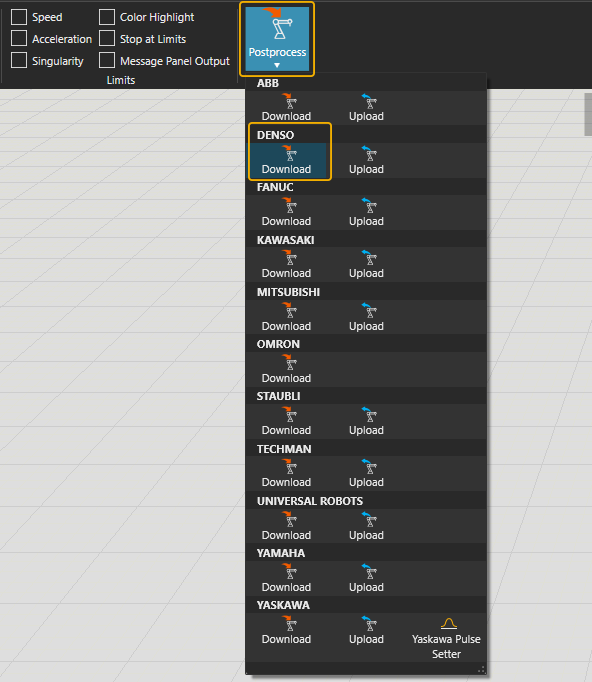
To translate the robot program for the real robot controller:
- Click the robot (or another device) which program you want to translate.
- Click Postprocess from PROGRAM ribbon tools.
- Click Download under the correct robot brand name.
- Browse the folder where you want to save the program file and give name for the file.
-
Click Save.
The file can be transferred to the robot controller
Note: In real robots, run only the robot programs that are translated from calibrated models. Otherwise, there can be unpredictable collisions and errors when executing the program.
For more information check the Visual Components Robotics OLP robot brand specific manuals on the Visual Components OLP Extranet.