Techman Robot
About the plugin
The Techman Robot plugin allows you to connect a Techman robot controller during simulation and exchange data. For example, a program running in a virtual or physical Techman controller, can drive the joints of a Techman robot in a simulation, read data from sensors, and set outputs for picking and placing products.
The plugin is associated with the Connectivity feature of Visual Components Premium and can connect to one or more Techman robot controllers. The simplified workflow is the following:
- Add server
- Connect to the server
- Map variables
- Run the simulation
Terminology
- TMflow – Platform for managing Techman robots. TMflow as a software can be used for simulating virtual controllers and working with real robots.
- TMcraft – Architecture used for communicating with Techman robots.
- TMcraft Shell – Interface used by Visual Components to communicate locally with the Techman controller operated in TMflow running on the same PC. That is, Visual Components and TMflow are required to be installed on same PC.
- TMcraft Service – Interface used by Visual Components to communicate remotely with the Techman controller.
- The service package created by Visual Components needs to be imported to the Techman controller and executed to support a remote connection.
- In this case, Visual Components and TMflow are not required to be installed on same PC, and Visual Components can directly connect to the Techman controller.
- I/O (Input/Output).
Read and Write Support
Read and Write table
| Type | Read | Write | Notes |
| Robot controller digital and analog inputs and outputs |
Yes |
Yes | Supports writing control box and end module digital and analog outputs. |
| Current joint values from any robot of the connected controller |
Yes |
No |
Requirements
The Techman Robot plugin supports local and remote connections to a Techman controller. A simple setup requires Visual Components Premium and TMflow running on the same PC. This supports a local connection to the virtual controller running in TMflow which itself can synchronize with a real controller.
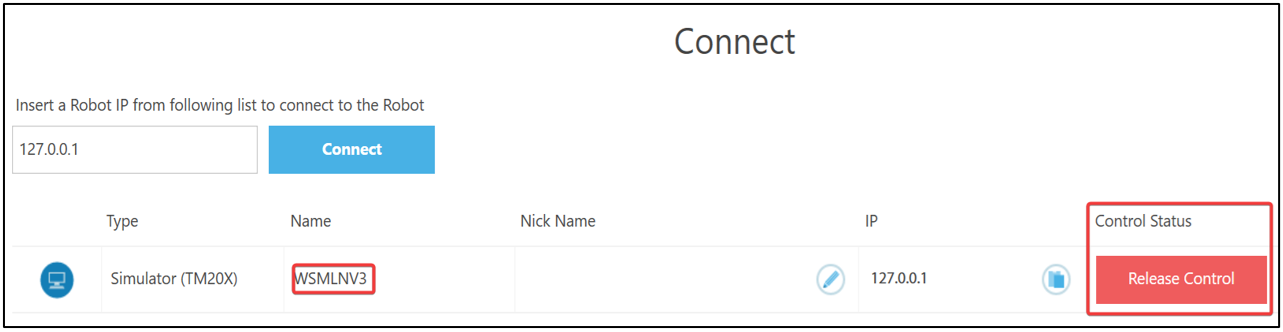
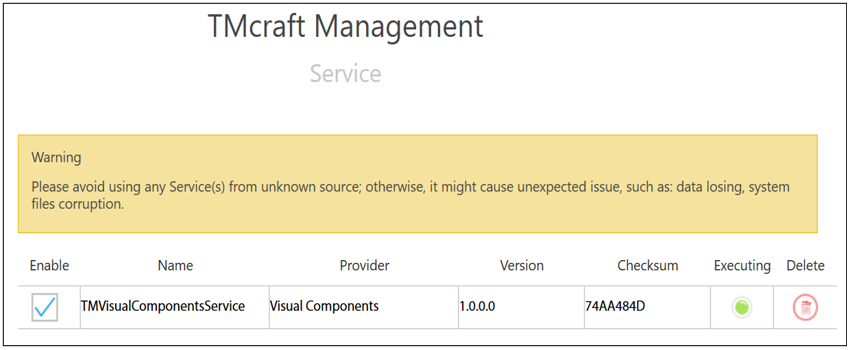
An advanced setup requires TMcraft service for connecting to Visual Components. This supports a remote connection to both a virtual and a real Techman controller.
Setup
- Check that your host PC meets the requirements.
- Access the Techman robot controller.
- The plugin connects to the robot controller, so the virtual or physical robot controller should be accessible via a direct network connection (IP address).
- For a simple setup with a localhost connection, it is enough to have the simulator running in TMflow.
- For an advanced setup with a remote connection, verify the Visual Components service is running on the Techman controller.
- Make sure a project is running in the Techman robot controller.
- In Visual Components, add a new server with the plugin and connect to the controller.
- If you are using a virtual robot controller running in TMflow, use Local connection.
- You can use Remote connection for both a local or remote connection. Provide the IP address of the Techman controller and port number. The Visual Components service running on the Techman controller listens using a default port 51234.
- Map the variables.
- For example, map the VALUE property of each degree of freedom (DOF)/Joint of the robot component to a joint of the corresponding mechanical unit in the controller. This way, the controller drives the robot in the 3D world.
- For simulating actions such as grasp/release, map the outputs of the robot component for those actions to the I/O of the controller you will use for those actions.
- Run the simulation.
- Simulate to start the exchange of data. Note that in the Connected Variables panel, the Prepared value column can be used to set values for testing.
Capabilities
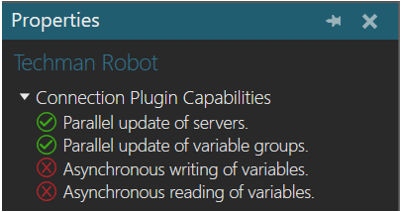
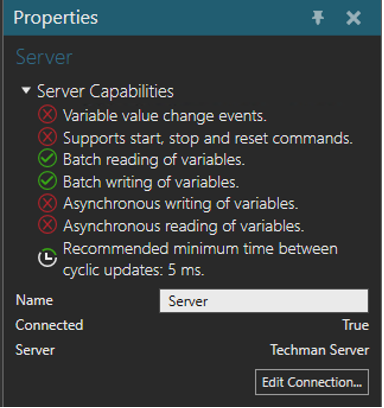
You can verify the capabilities of the Techman Robot plugin and subsequent server connections in the Properties panel.
Plugin
- In the Connectivity Configuration panel, select Techman Robot.
- In the Properties panel, expand Connection Plugin Capabilities.
Server
- In the Connectivity Configuration panel, expand Techman Robot, and then select an active server connection.
- In the Properties panel, expand Server Capabilities.
Connection Settings
A Techman Robot plugin connection requires a Techman robot controller to have an IP address. Each connection in Visual Components is a client to the controller and is not meant to remotely operate the robot.
Error handling
- If the connection to the controller is lost, the exchange of data will stop.
- The plugin expects an event to be received from the controller in such cases.
- If the event is not received, you might need to manually disconnect Visual Components from the controller and then attempt to reconnect to verify the connection is lost.
- If the TMcraft service for Visual Components is not executing on the Techman controller, a remote connection will fail.
- It is not enough to import the service, you must also execute it on the controller.
- Be aware of how signals are used in your Techman project when attempting to write those signals during simulation.
- When attempting to write an analog signal, be aware of its range of values, since a value outside of that range would generate an error.
Limitations
- Event-based update mode works only for the simulation to server direction.
- Joint values cannot be written to the robot controller per safety reasons.
Compatibility
The Techman Robot plugin was developed using TMflow and TMcraft version 2.16 and supports a connection to any Techman robot that is compatible with that technology.
Supported data types
The Techman Robot plugin supports access to digital signals and mechanical units joint data.
| Techman Robot Type | .NET Type |
| DigitalInput | System.Boolean |
| DigitalOutput | System.Boolean |
| AnalogInput | System.Double |
| AnalogOutput | System.Double |
| Joint | System.Double |
Post Processing the Robot Program
Postprocessor
If you need to translate robot programs from your Visual Components model to the native controller, you can use the Postprocessor.
Note: The Postprocessor is available in the following products:
- Visual Components Premium
- Visual Components Premium OLP
- Visual Components Professional OLP
- Visual Components Robotics OLP
For more information on postprocessing using a Visual Components OLP product, see Translate robot program.
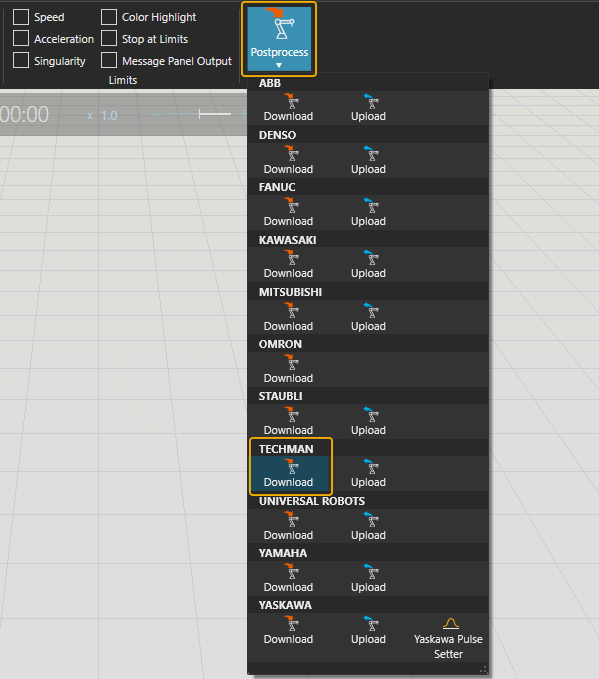
To translate the robot program for the real robot controller:
- Click the robot (or another device) which program you want to translate.
- Click Postprocess from PROGRAM ribbon tools.
- Click Download under the correct robot brand name.
- Browse the folder where you want to save the program file and give name for the file.
-
Click Save.
The file can be transferred to the robot controller
Note: In real robots, run only the robot programs that are translated from calibrated models. Otherwise, there can be unpredictable collisions and errors when executing the program.
For more information check the Visual Components Robotics OLP robot brand specific manuals on the Visual Components OLP Extranet.