Options
The Options view allows you to customize application settings, including general preferences, backup behaviour, display options and add-ons.
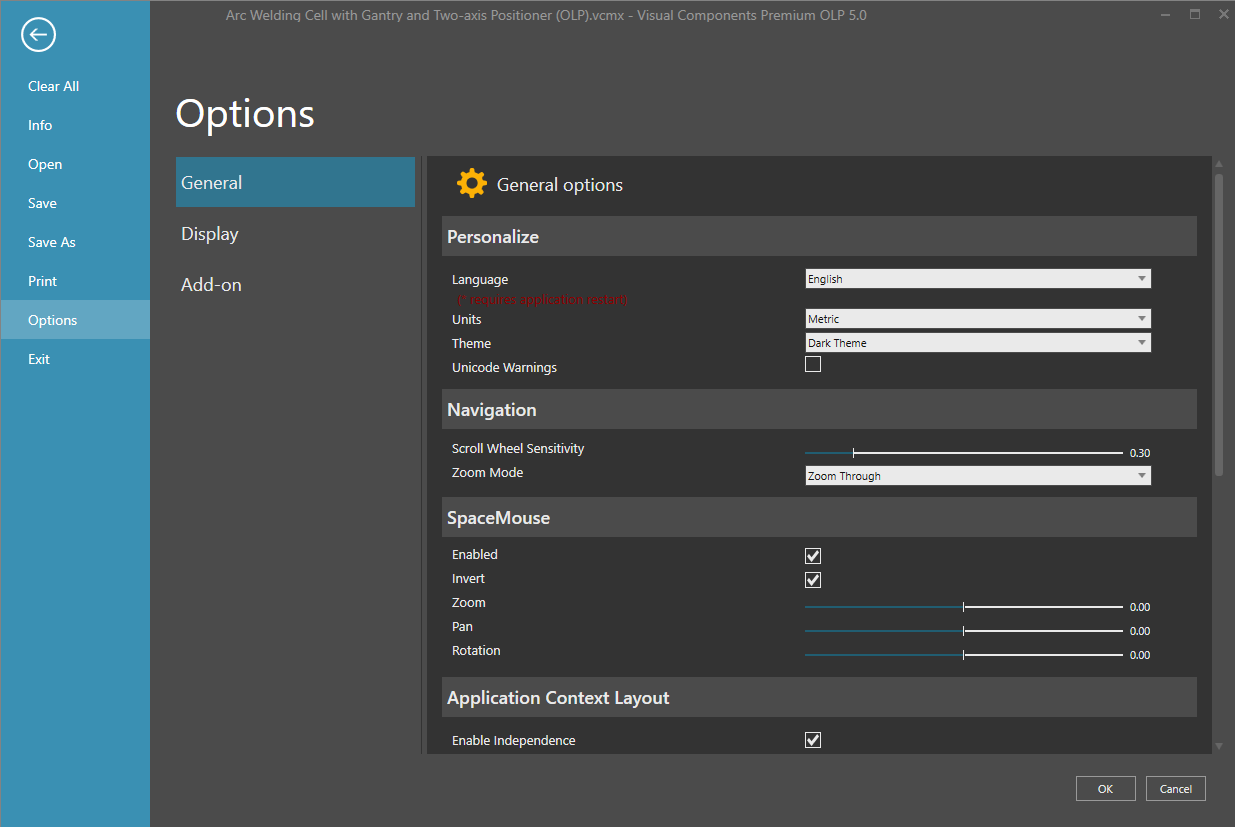
General
In the General view, you can:
-
Change the user interface language.
Note: This will take effect after an application restarts. - Edit the system of measurement for units and quantities.
-
Edit preferences for navigation, Python script editor, animation streaming and for backups.
Backup
With the Limit backups enabled, the files that should be deleted are determined by modification date. With Delete old backups option enabled, backup files are deleted on application startup. The folder that is cleaned up is either the selected backup folder or the My Models folder if no backup folder is selected.
Note: With backup file extensions, the extension with largest number is considered the most recent one.
Display
In the Display view, you can:
- Edit 3D world visualization preferences.
- Edit display accuracy of dimensions and annotations.
- Adjust the generation quality of 2D drawings.
- Adjust graphic settings.
Graphics settings
The Graphics settings allow you to select the graphics performance of your Visual Components product. These settings match the Graphics preference panel in Settings in Microsoft Windows in for example the following location inside the operating system settings:
Settings > System > Display > Graphics (or Graphics settings) > Visual Components Premium 4.10 > Options > Graphics preference.
When you first install your Visual Components product, by default the High performance preference is applied and you will then need to restart the application. And whenever you change your Graphics Performance Preference to any of the following options, to apply the change you should restart the application.
- Let Windows decide
- Power saving
- High performance
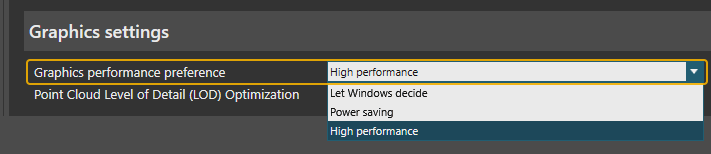
Enable the Point Cloud Level of Detail (LOD) Optimization option to render less points when your point of view in the 3D world is far from the point cloud.
Note: Enabling this option does not require an application restart.

Add-on
In the Add-on view, you can view and enable or disable available Add-ons.
Note: Enabling or disabling certain add-ons takes effect after the application restarts.