Merging Faces
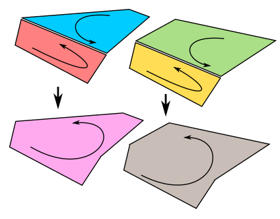
Points in faces can be merged together to form smoother surfaces.
- On the MODELING tab, in the Geometry group, click the Tools arrow, and then click Merge faces.
- In the 3D world, select a geometry set.
- In the Merge faces task pane, set Tolerance to the desired radius for detecting neighboring points, and then click Merge.
The process involves assigning a tolerance value that defines a radius for a point on an open edge to find and match itself with a point on another face.
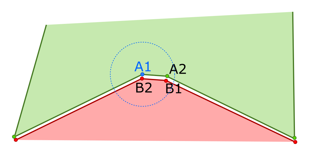
Two requirements is the edges of the two points must be going in opposite directions of one another and belong to the same feature.
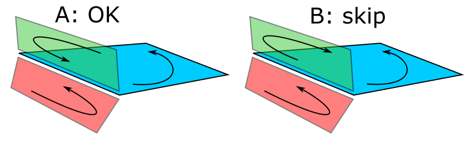
If an edge has more than one neighboring edge, the edge will be skipped and the faces will not merge at those edges. Generally, this process is done to clean up degenerate and non-manifold geometry, for example fixing cracks and holes on surfaces.