Backstage
The Backstage view allows you to open and save files as well as edit preferences.
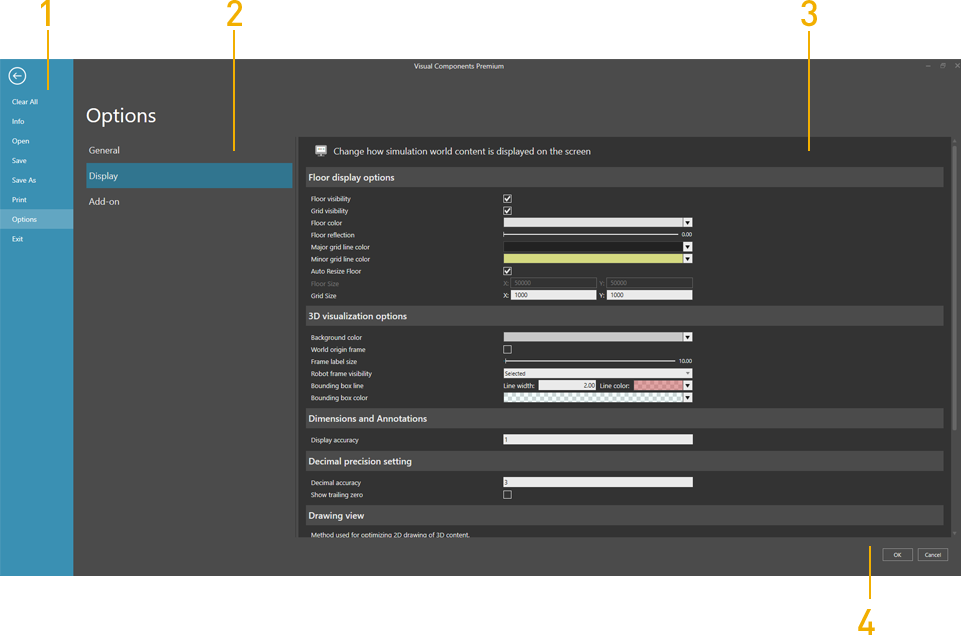
| 1. | Navigation Pane |
| 2. | Sections |
| 3. | Screen |
| 4. | Confirm Options |
Access
To access the Backstage view:
- Click the File tab.
Context
The context of the Backstage view depends on the item you select in the Navigation pane.
You can:
- Open and save layouts.
- Print content shown in the 3D world and drawing world.
- Edit and save preferences for selections, navigation, rendering, and the language of the user interface.
- Edit the system of measurement for units and quantities.
Commands
The following commands are shown in the Navigation pane when you click the File tab.
| Name | Description |
| Clear All | Clears the 3D world of all components and opened layouts. |
| Exit | Closes Visual Components Robotics 5.0. |
| Info | Shows product and license information as well as the metadata of the current layout in 3D world. |
| Open | Opens a native or supported type of file as a layout in the 3D world. |
| Options | Displays a set of options/preferences for configuring Visual Components Robotics 5.0. |
| Previews and prints either the view of the 3D world or a selected area of the drawing world. | |
| Save | Saves changes made to the current layout in 3D world to an existing file. |
| Save As | Saves the current layout in the 3D world as a new file. |