Display
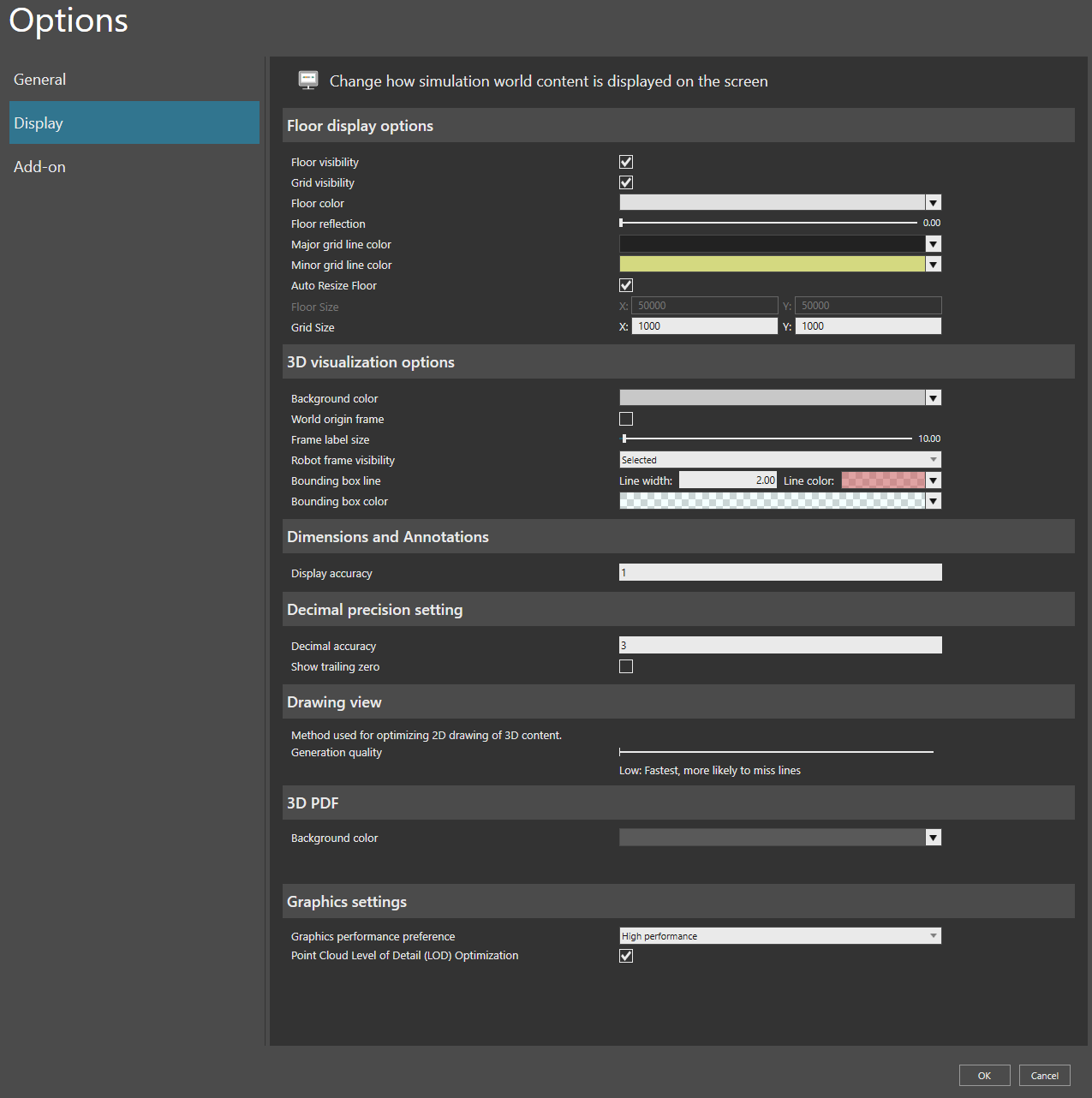
In the Display view, you can:
- Edit 3D world visualization preferences.
- Edit display accuracy of dimensions and annotations.
- Adjust the generation quality of 2D drawings.
- Adjust graphic settings.
Graphics settings
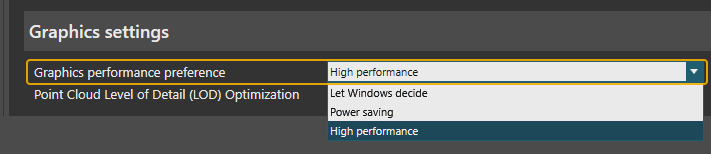
The Graphics settings allow you to select the graphics performance of your Visual Components product. These settings match the Graphics preference panel in Settings in Microsoft Windows in for example the following location inside the operating system settings:
Settings > System > Display > Graphics (or Graphics settings) > Visual Components Premium 4.10 > Options > Graphics preference.
When you first install your Visual Components product, by default the High performance preference is applied and you will then need to restart the application. And whenever you change your Graphics Performance Preference to any of the following options, to apply the change you should restart the application.
- Let Windows decide
- Power saving
- High performance
Enable the Point Cloud Level of Detail (LOD) Optimization option to render less points when your point of view in the 3D world is far from the point cloud.
Note: Enabling this option does not require an application restart.
