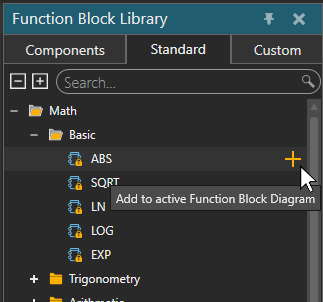
Function Block Library
Note: Logic Modeling is still in Early Access. Logic Modeling features created during Early Access, including plugins and integrations, may not be fully compatible with future versions of Visual Components.
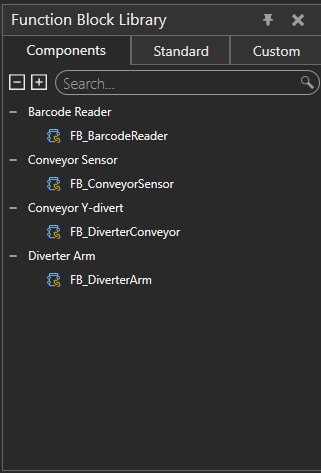
The Function Block Library provides access to Function Blocks that can be added to a Function Block Diagram. The library contains Components, Standard, and Custom Function Blocks.
For more information about the different Function Block types, see Function Blocks.
Opening the Function Block Library
To open the Function Block Library, open the Logic tab and select Function Block Library.
The Function Block Library contains the Components, Standard, and Custom tabs. Use the Search field on each tab to find Function Blocks by name.
Components
The Components tab lists the Component Function Blocks available in the layout. Function Blocks are grouped according to the components that contain them.
Expand a component to view its available Function Blocks, or use the Search field to find a Function Block by name.
Standard
The Standard tab contains predefined Standard Function Blocks. Function Blocks are organized into categories and subcategories according to their functionality.
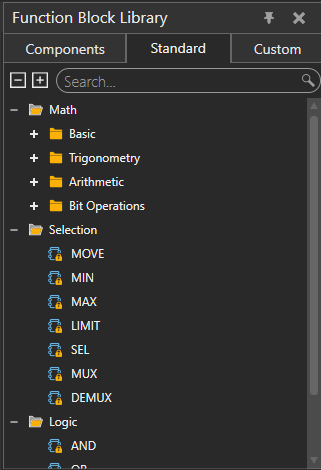
Expand the categories and subcategories to browse the available Standard Function Blocks, or use the Search field to find a Function Block by name.
For descriptions of the available Standard Function Blocks, see Standard Function Blocks.
Custom
The Custom tab contains reusable Custom Function Blocks. Function Blocks are organized into categories.
Expand a category to view its Custom Function Blocks, or use the Search field to find a Function Block by name.
Creating a Custom Function Block
To create a Custom Function Block:
- On the Custom tab, select + next to the Search field to create a new Custom Function Block. The Custom Function Block Editor opens.
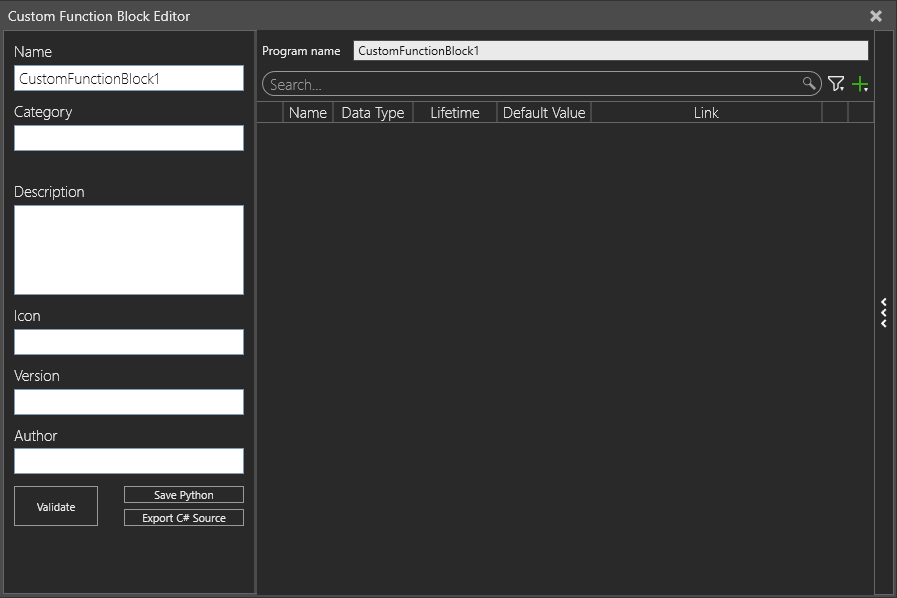
- Enter a Name for the Custom Function Block.
- Optionally, specify the Category, Description, Icon, Version, and Author.
- Enter a Program name for the Logic Program.
- Add and configure the required ports. For more information about ports and linking a port, see Logic Program Editor.
- Add the required Structured Text (ST) code.
- Select Validate to validate the Structured Text code.
- Select Save Python to save the Custom Function Block.
After saving the Custom Function Block, it appears on the Custom tab of the Function Block Library and can be added to a Function Block Diagram.
For more information about configuring ports and editing Structured Text code, see Logic Program Editor.
Adding a Function Block to a diagram
Before adding a Function Block, select the Function Block Diagram to which you want to add it.
- Open the Function Block Library.
- Select Components, Standard, or Custom, depending on the type of Function Block that you want to add.
- Browse the library or use Search to locate the Function Block.
- Select + (Add to active Function Block Diagram) to add the Function Block to the active diagram.